Your academy,
on one screen.
Batches, monthly fees, attendance and your coaches, on your phone or your laptop. The screens below are from a sample football academy with four batches, fifteen players, three coaches and a front desk.
The same console runs every sport. This page shows football; see it forBadminton
See the whole academy at a glance.
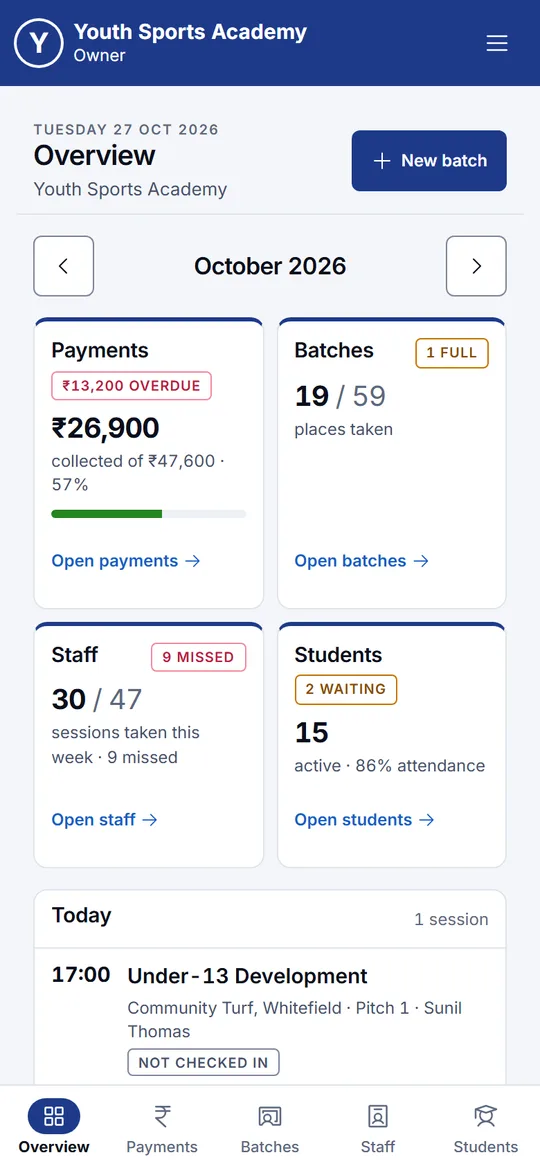
You run the academy: its batches, its fees, its coaches and its students. Everything that needs you is in one list.
Start from the overview
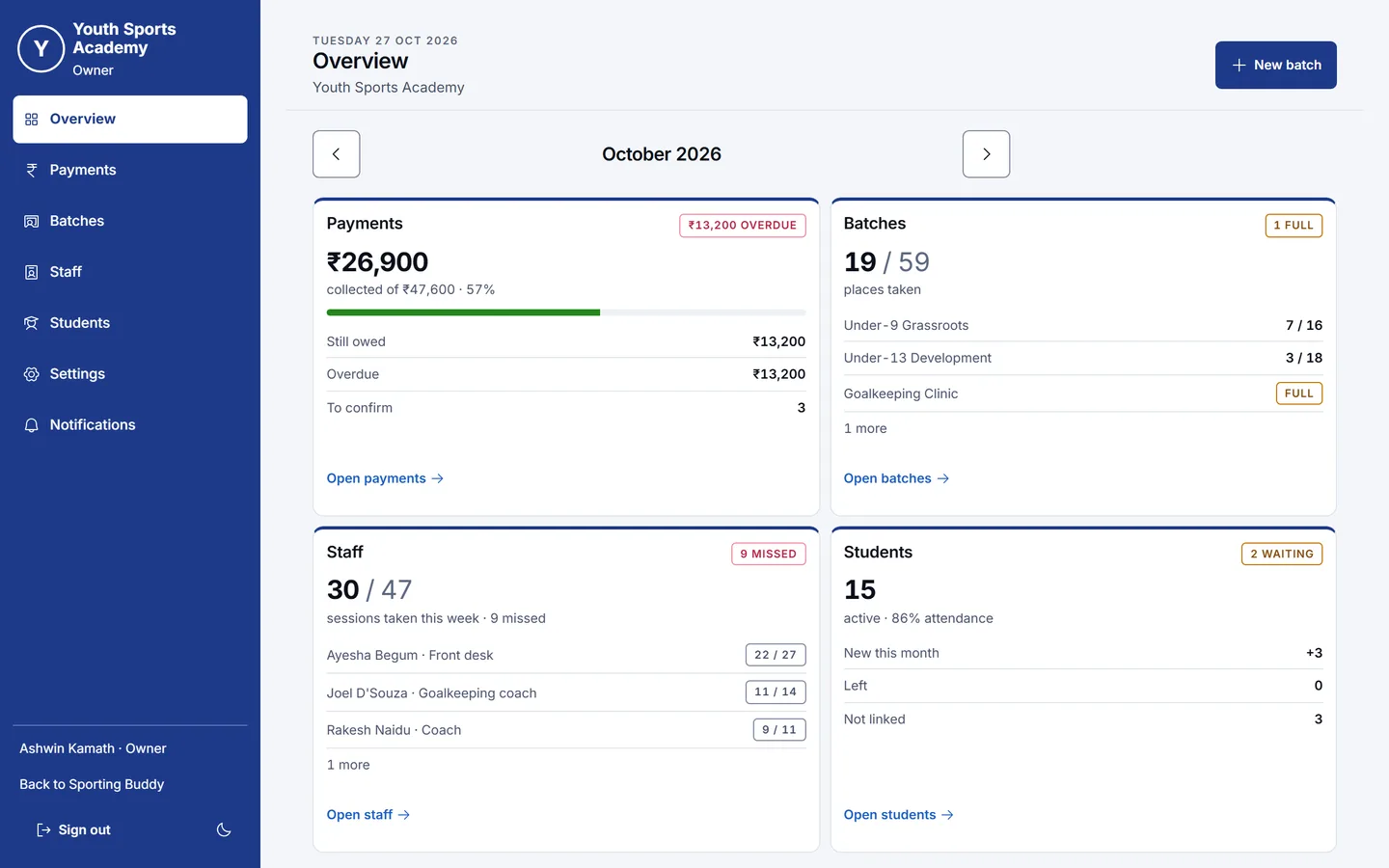
The month’s fees collected and overdue, places left in each batch, the sessions your coaches took, and student attendance. Needs you lists what to act on: a session with no coach, payments to confirm, families asking to join.
Know who has paid
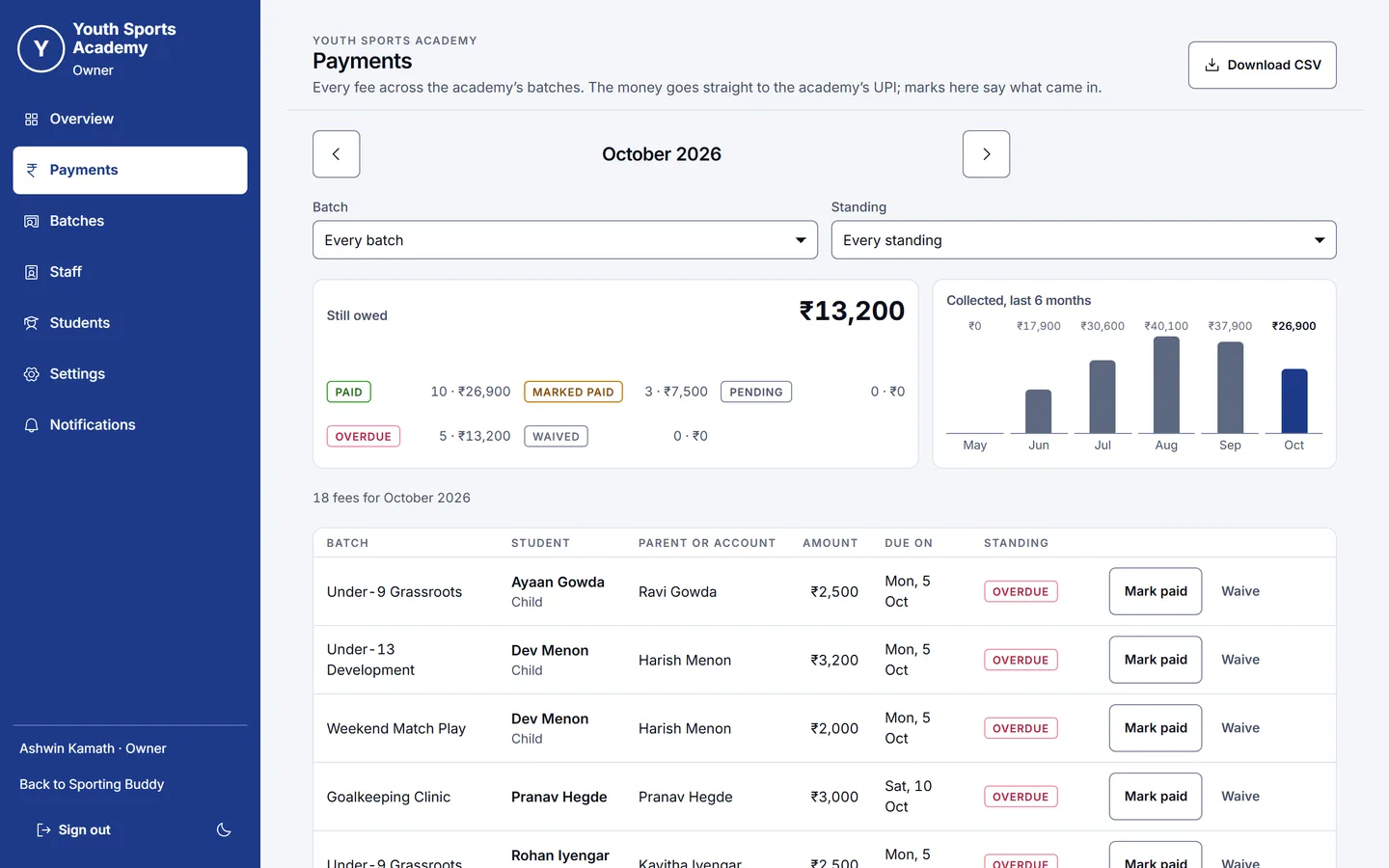
Every fee for the month, by batch and student. Parents pay straight to your UPI ID; you mark a fee paid, confirm a parent’s own mark, or waive it. Filter by batch or by who is overdue, and download the month as a spreadsheet.
Fill a batch from one link
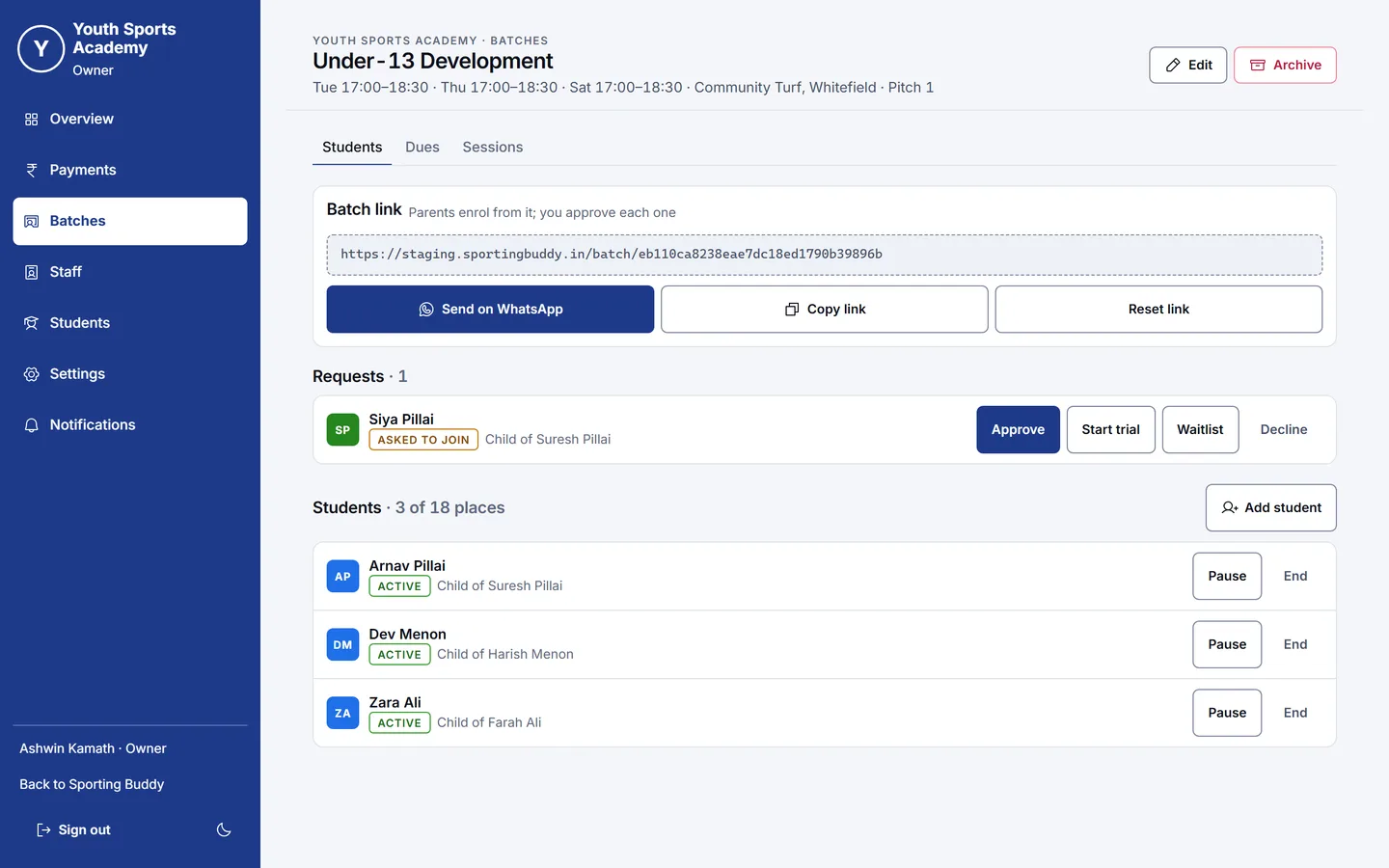
Each batch has its days, venue, places and monthly fee, and a link. Send it to your parents’ WhatsApp group: families ask for a place from it, and you approve, start a trial, waitlist or decline each one.
Know your coaches turned up
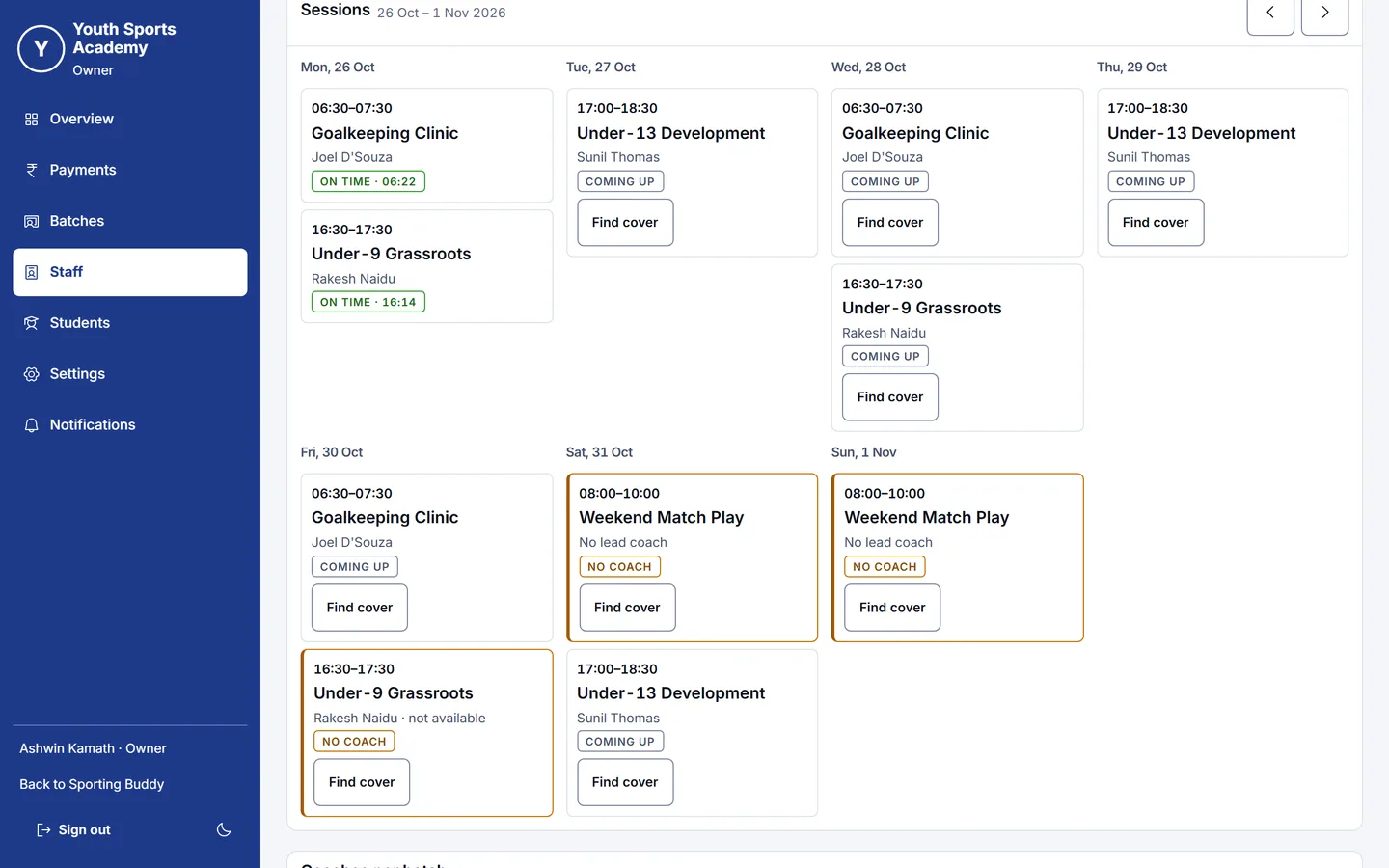
Coaches check in at the ground, so each session shows whether they were on time, late or missed. A coach on leave, or a batch with no coach, shows as No coach on the week, with Find cover to assign someone who is free.
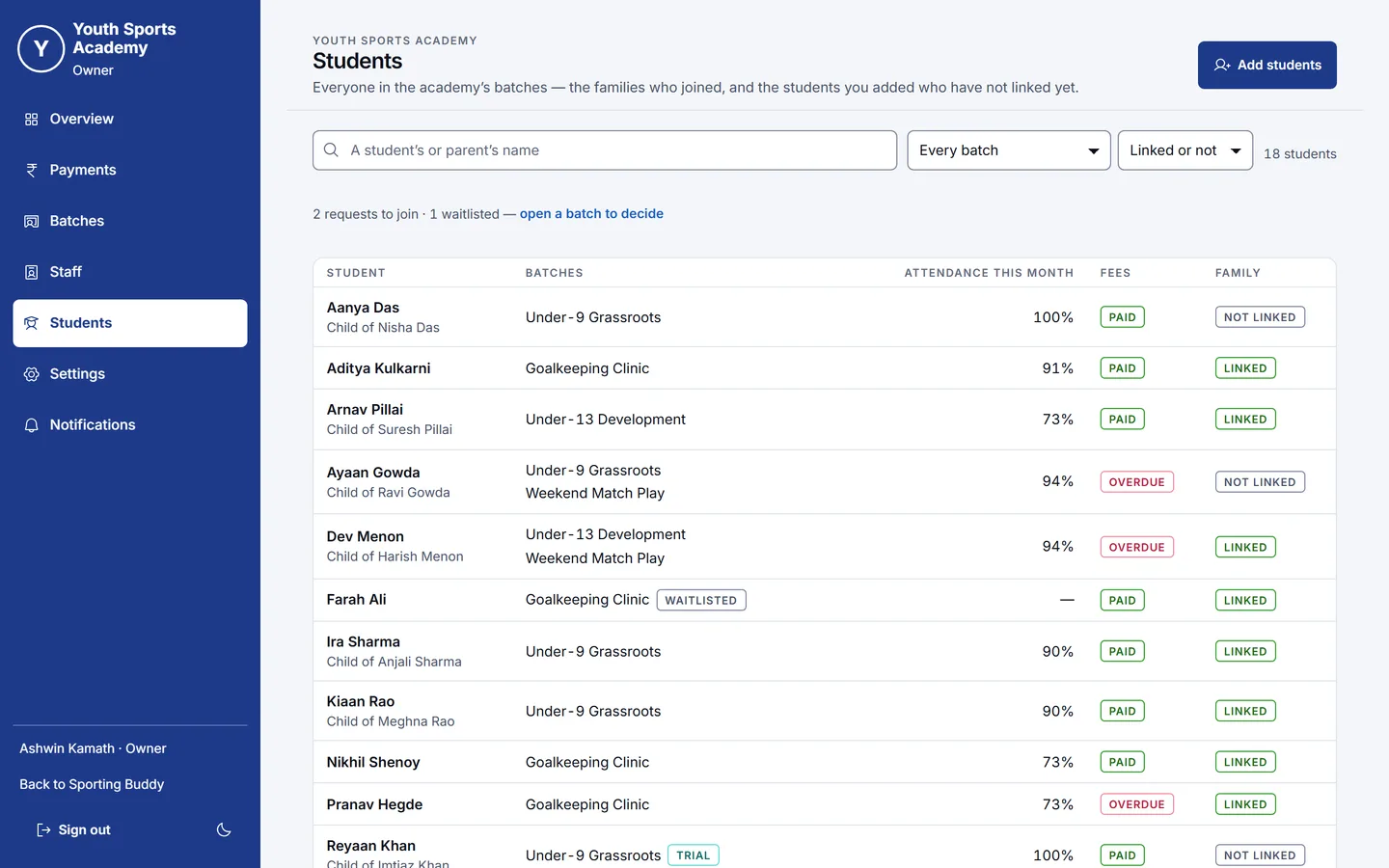
Every student in one list
Each student’s batches, attendance this month and fees. Bring your existing students over by adding them yourself; each family links their account later from an invite.
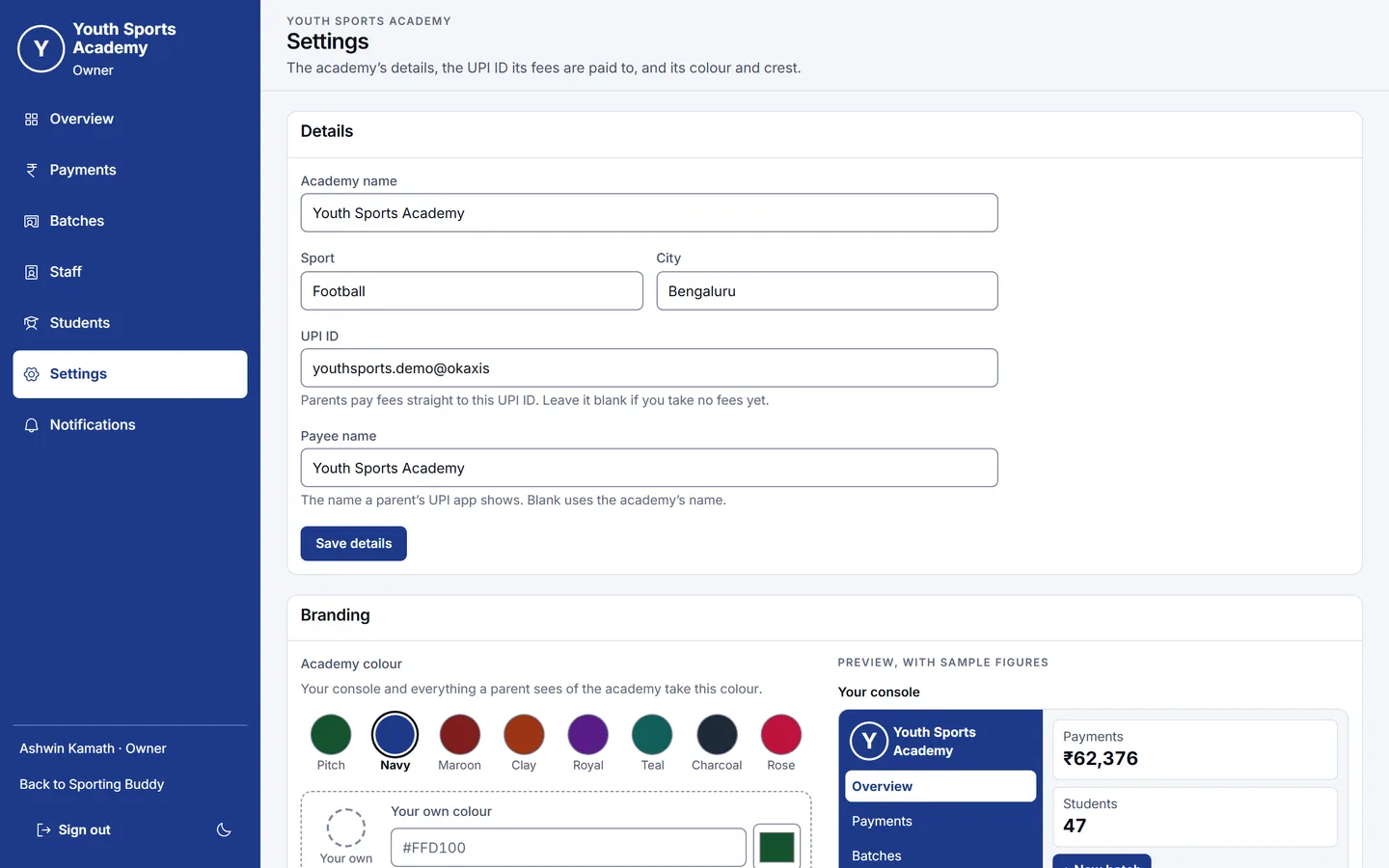
Make it yours
Your academy’s name, the UPI ID fees are paid to, your colour and your crest. Parents see your colours on every screen and every link you send them.
Or run it from your phone
Every screen works on a phone, with the main pages one tap away at the bottom.
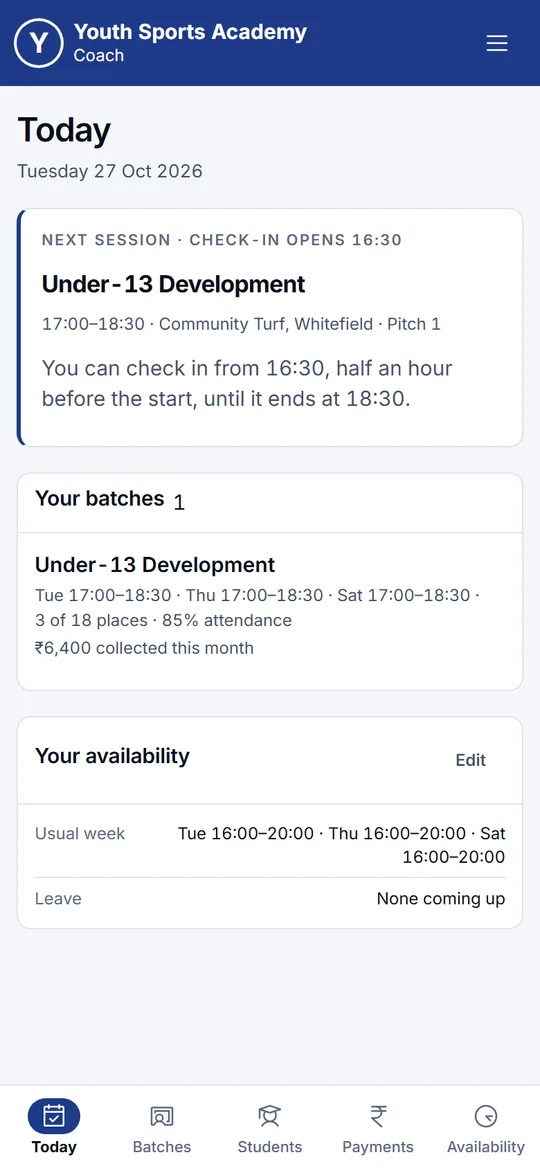
A coach's day, on their phone.
You add a coach by sending them a link. They see only their own batches, and fees only if you let them.
Check in at the ground
Today shows the next session and when check-in opens: half an hour before the start, until it ends. Checking in after the start counts as late.
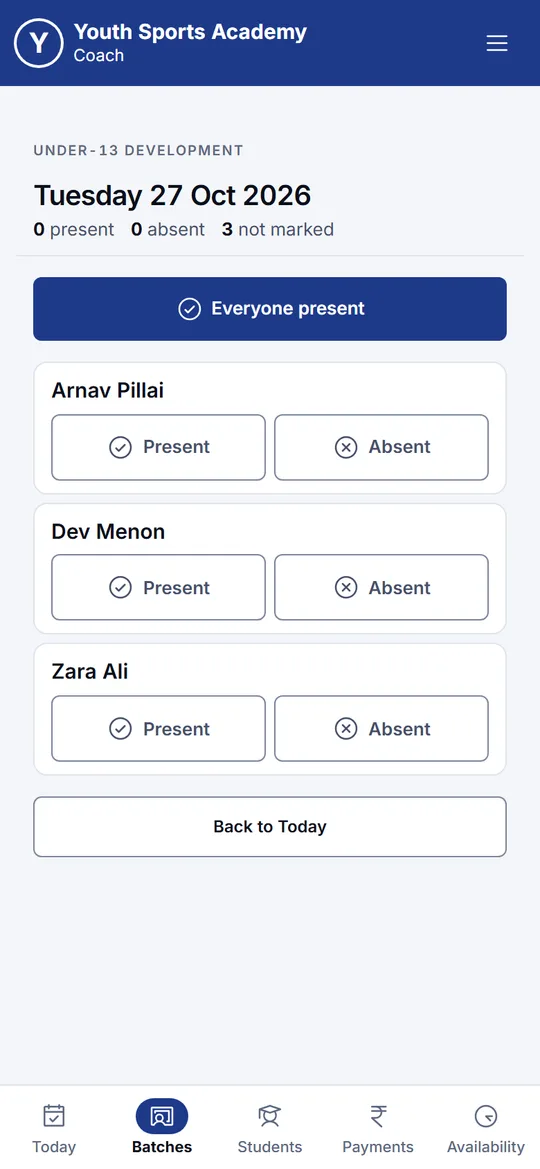
Mark attendance in a few taps
Everyone present in one tap, then change the few who were not. Parents see it on their own phones.
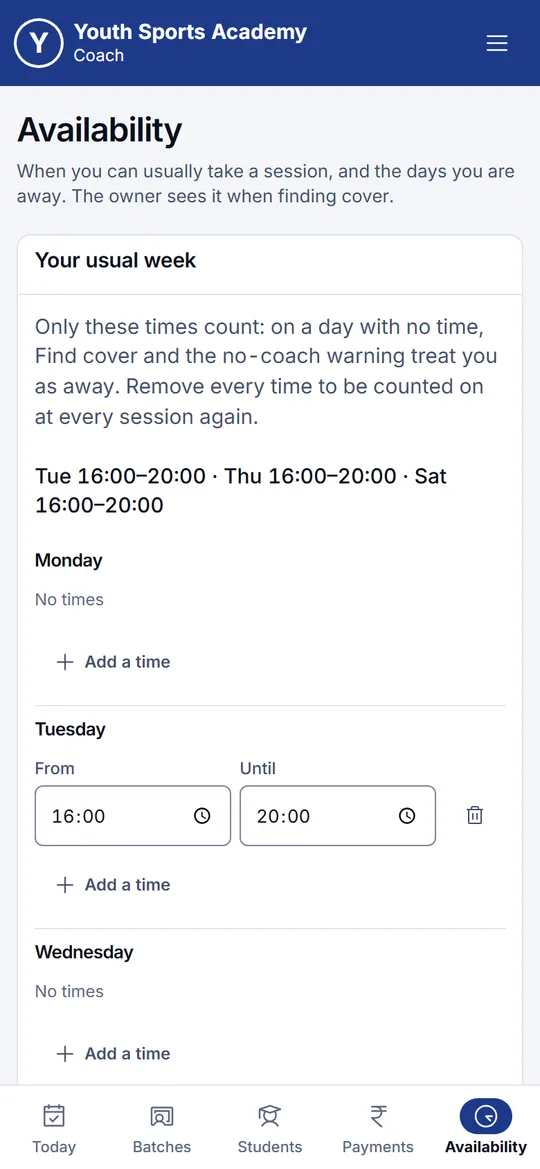
Say when you can coach
A coach sets their usual week and their days off. When a day off leaves a session with no coach, you are told at once, and the coaches free at that time are the ones offered for cover.
Reception, without the register.
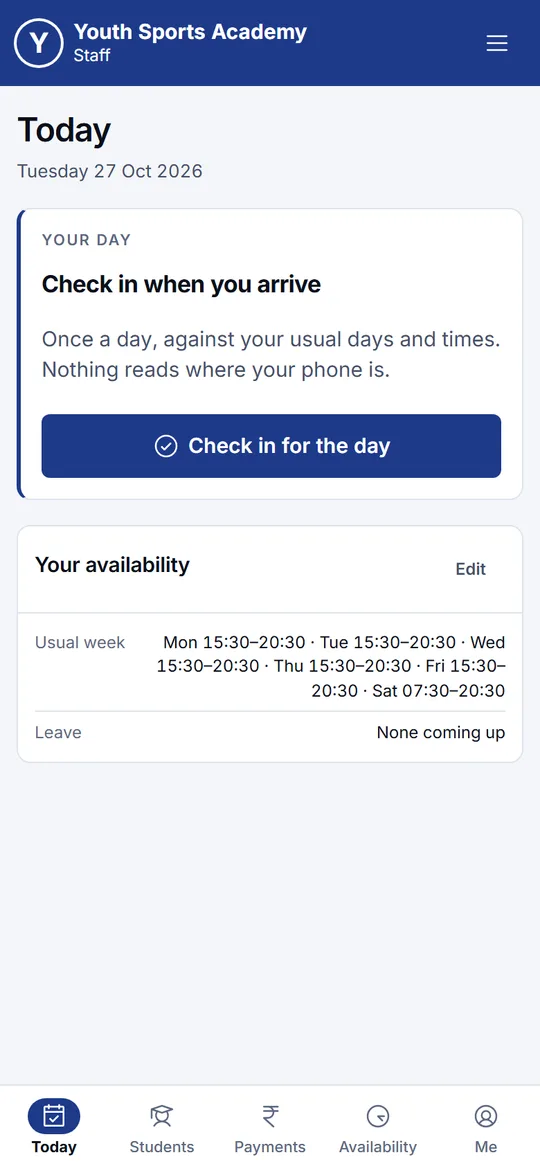
Front desk staff check in for the day and see every student. Whether they handle fees is your choice.
Check in for the day
One check-in a day, against their usual days and times, so you know the desk was open. Students and, if you allow it, Payments are a tap away.
What families see.
Parents join from your batch link with their own account, and can add each child to it.
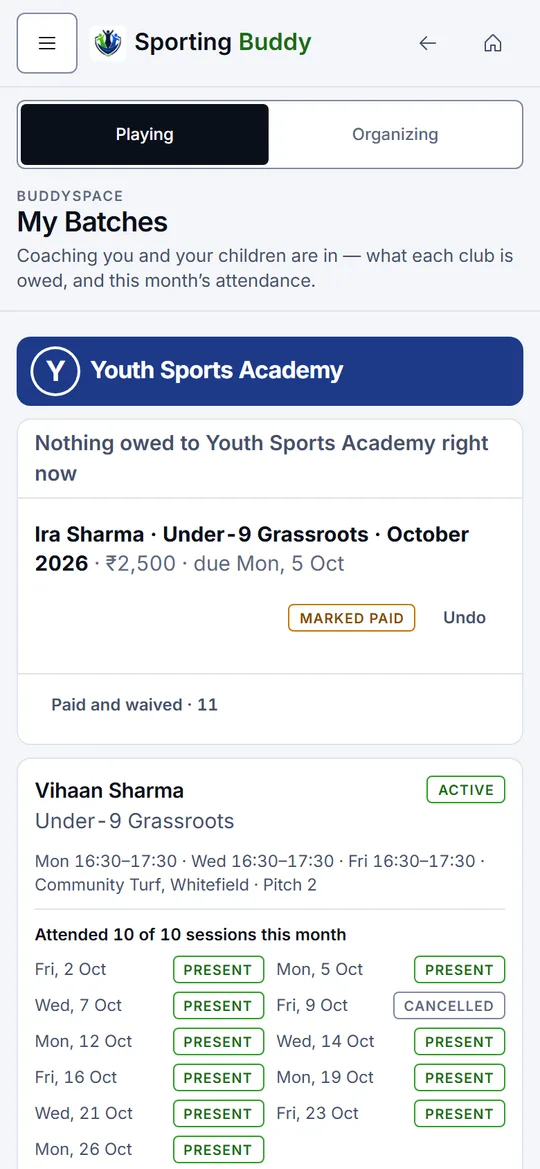
Every child, every session
Each child’s batches, every session this month marked present or absent, and what is owed, with a UPI QR to pay you directly. It carries your academy’s name and colours.
Bring your academy over.
Talk to us and we will set your academy up with you: your batches, your fees and your coaches. If yours is already set up, sign in with the account you use for Sporting Buddy.